Navigating the portal
This section covers how to login to the portal and logout of the portal, as well as navigating the portal.
Login & Logout Procedures
Login
Once email verification for your account is complete you can login by simply visiting https://portal.sahpra.org.za/login.

Logout
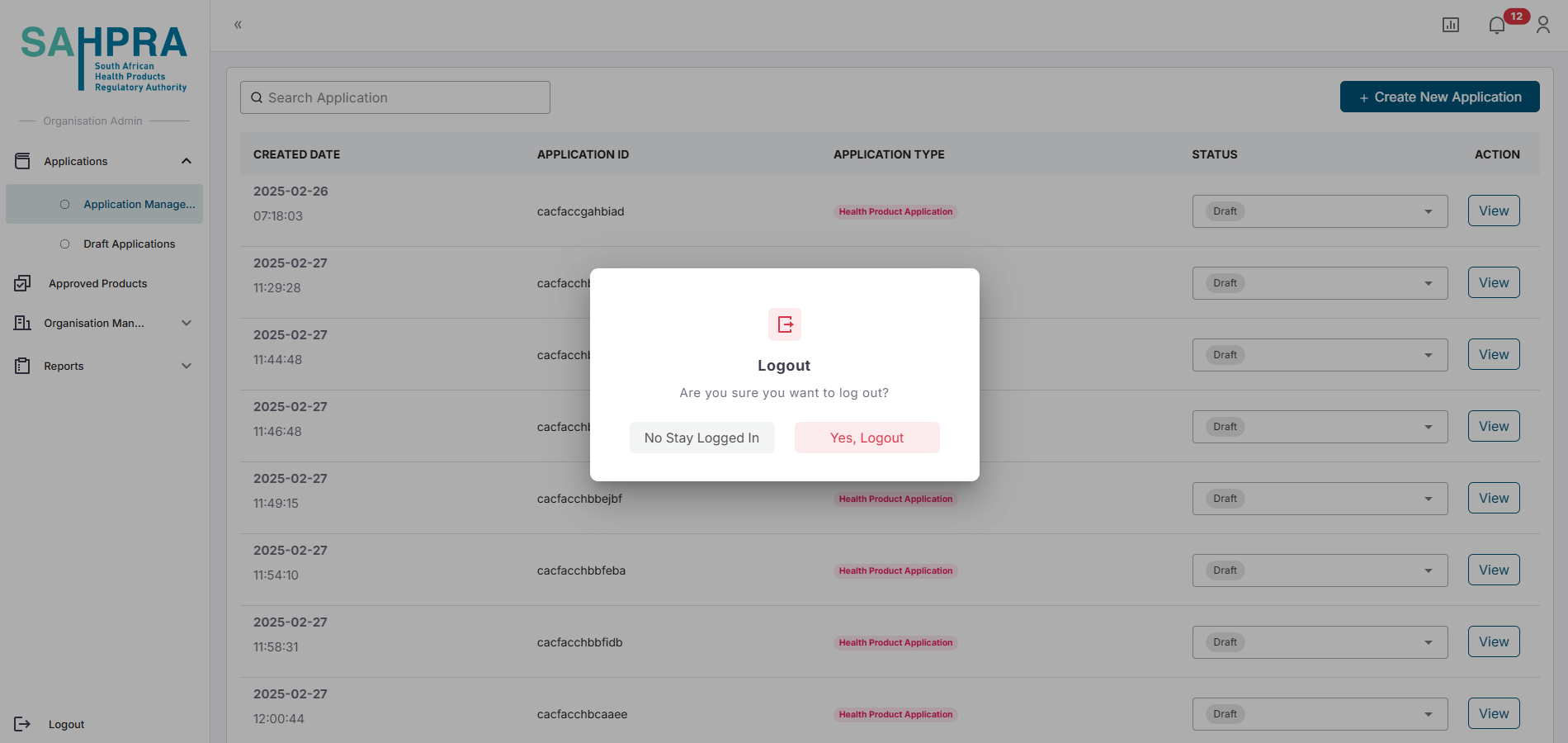
The Logout button is accessible at the bottom left of your main navigation once logged in. Confirm that you want to logout when it prompt you to logout
Navigating the Portal
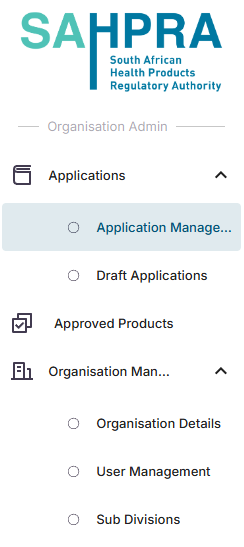
- The Applications tab (Containing Applications Manager and Draft Applications) shows all applications currently in processing in their different states.
- The Draft Applications sub-tab contains all draft applications not yet submitted to SAHPRA to easily continue building your application. Once the application has passed the payment upload step, it will move to the Applications Manager.
- The Approved Products tab will have any applications with approved applications/ products located in the tab.
- The Organisation Management tab (Only applicable to Organisation Administrators) allows the user to see and edit their Organisation Details, manage and invite users that are part of the organisation under User Management and management of the organisation Subdivisions.
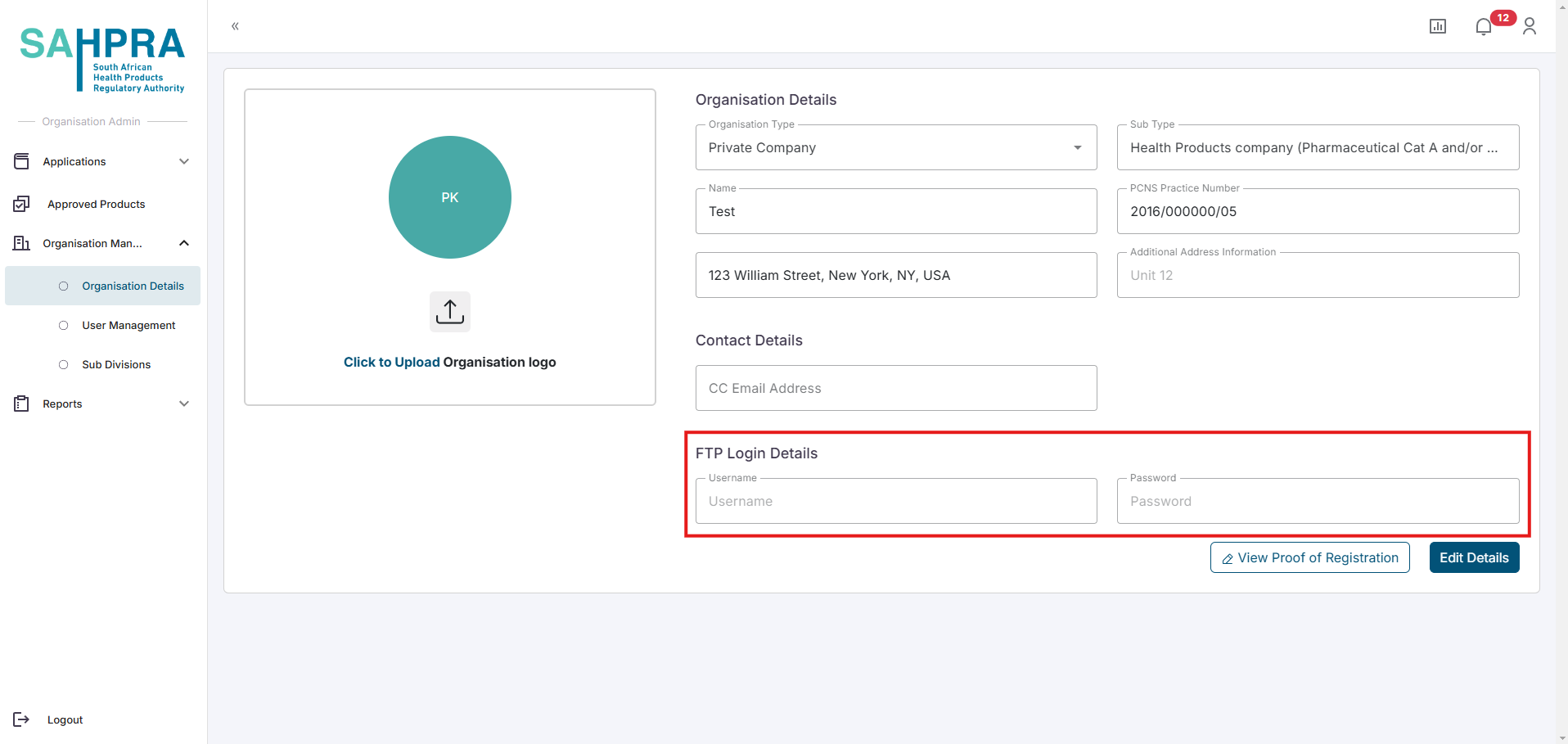
Note: FTP details must be set under your Organisation Details before attempting to create applications that require eCTD uploads to the SAHPRA FTP Server. The system will warn that a upload could not be verified if the FTP details are not filled in when trying to “Confirm FTP Upload” on a sequence.
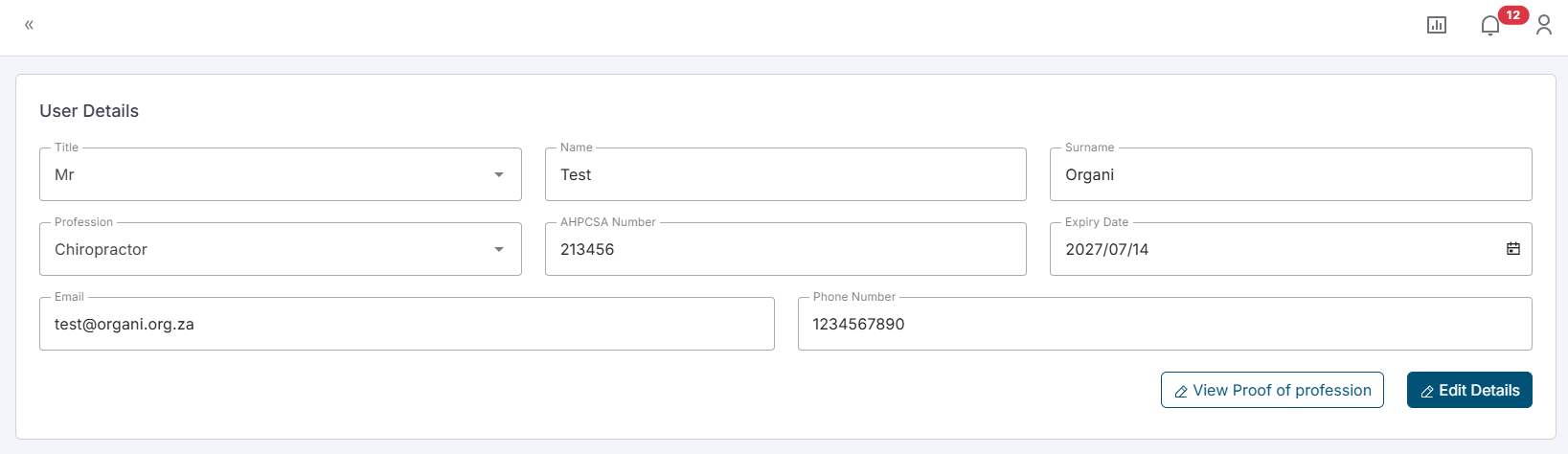
Your profile can be accessed via the profile icon in the top right where personal account details can be managed and changed.
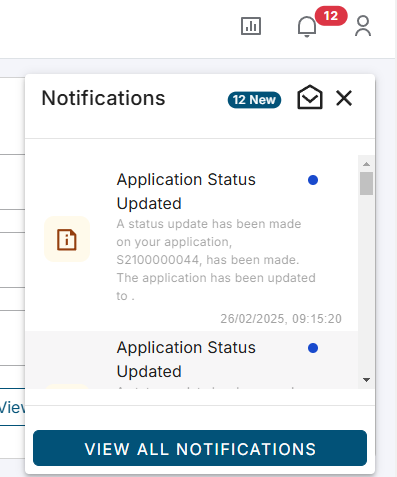
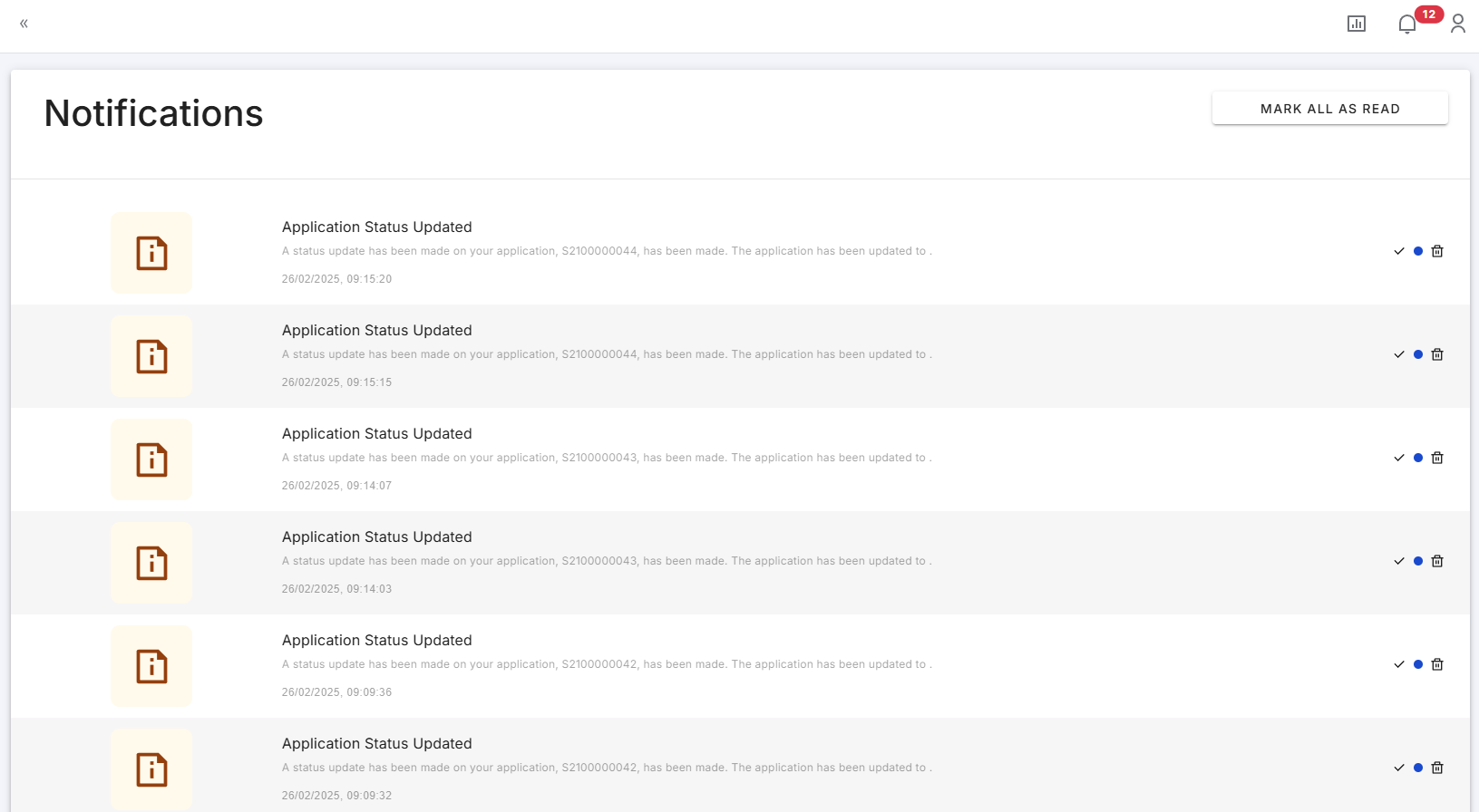
- Notifications can be accessed via the bell icon in the top right when clicked on. When clicking on “View All Notifications” a full history of notifications will be shown.
Password Management
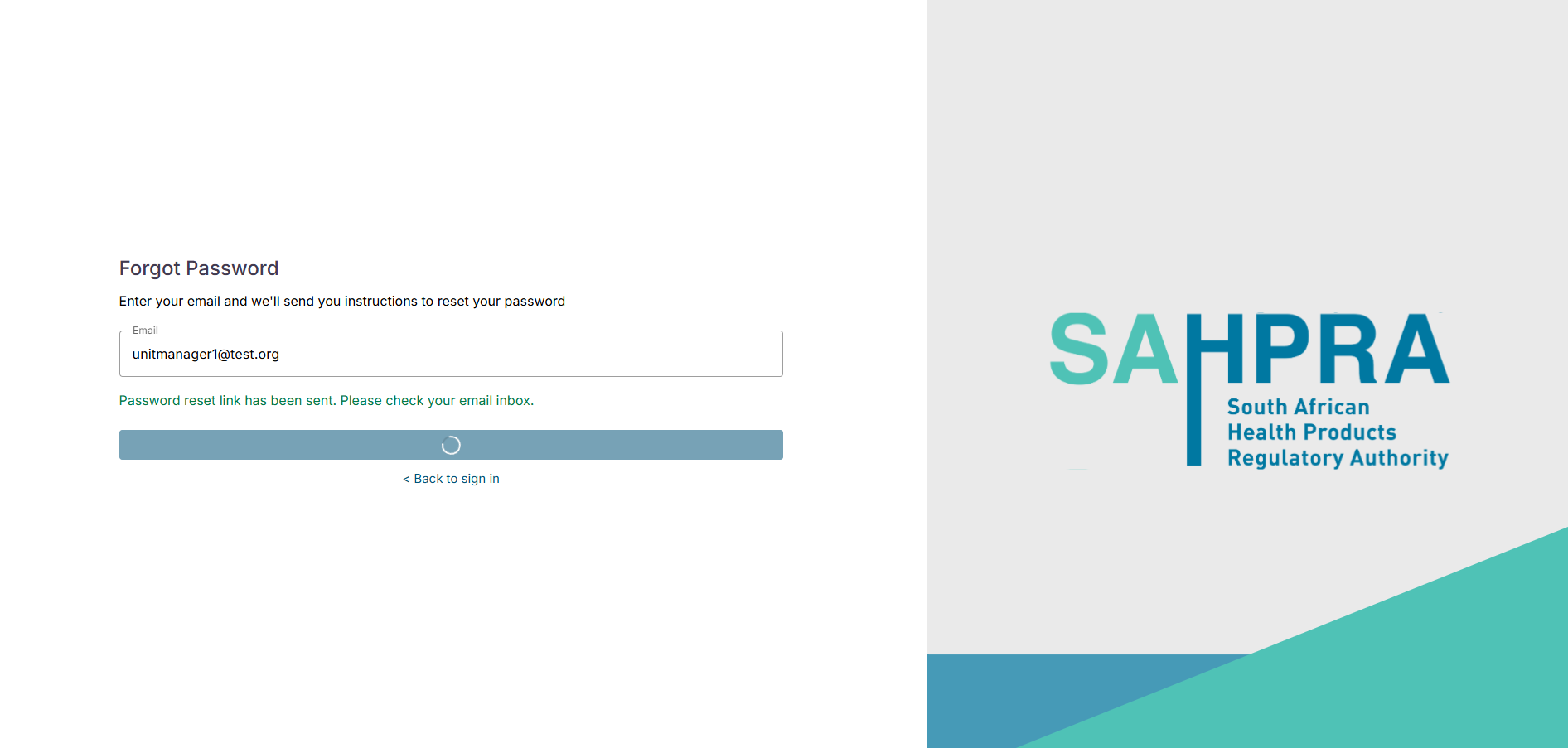
If you wish to reset your password there is a link on the main login page to reset your password. Once selected an email address is required to send a password reset email. If the account exists, the email will be delivered and the process can be followed to reset your password.