Variations
This section guides you through the process of creating a variation to an existing Health Product Application (HPA).
Prerequisites
Before beginning a variation application, ensure you have:
- The application ID of the existing registered product
- All required documentation for your specific variation type
- Details of the changes you wish to make
Step 1: Create New Variation
- Log in to the SAHPRA portal.
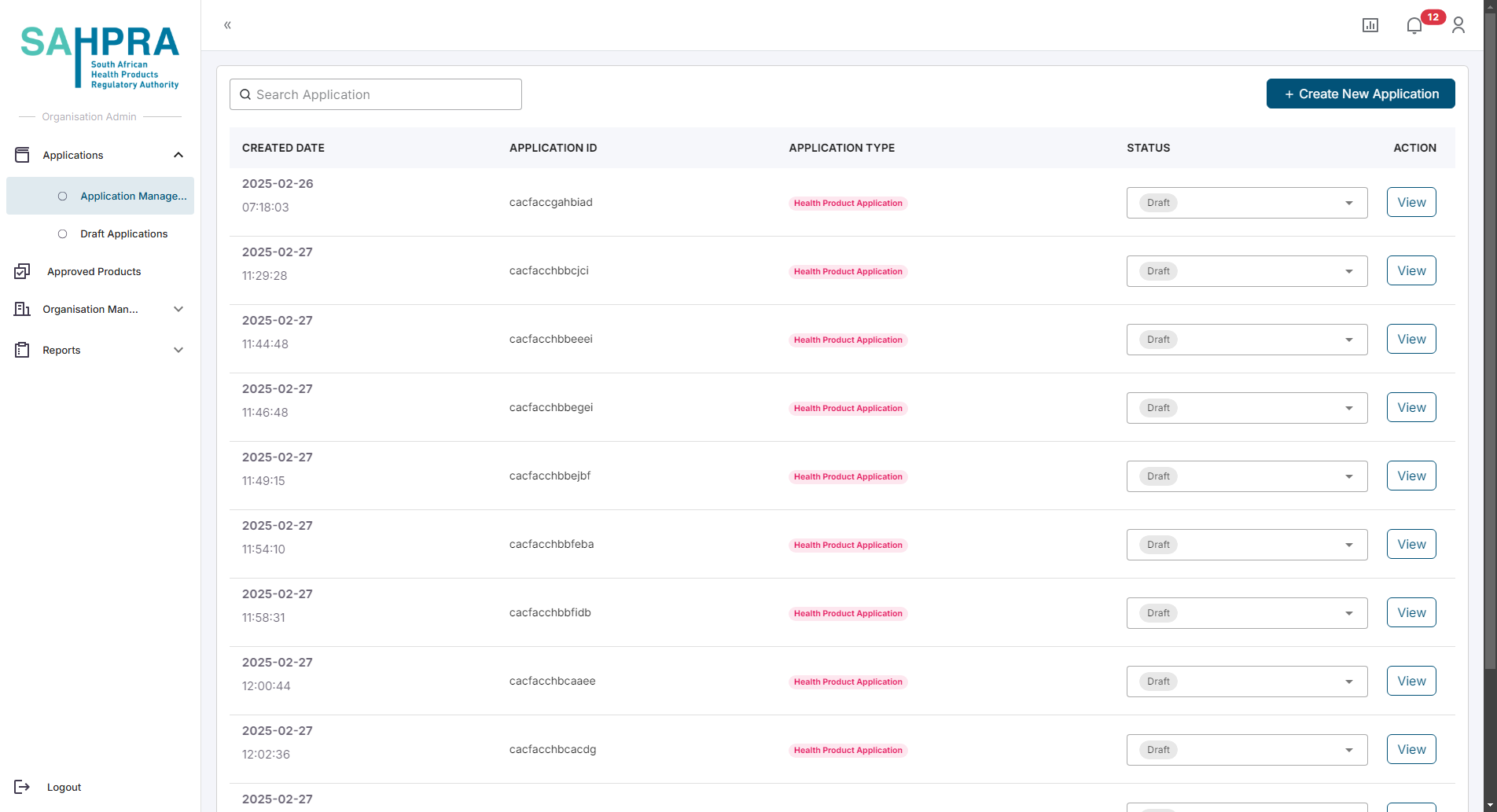
- You will be directed to the Applications Dashboard.
- Click the “Create New Application” button in the top right corner of the dashboard.
Step 2: Select Application Type
- Select “Health Product Application” from the available application types.
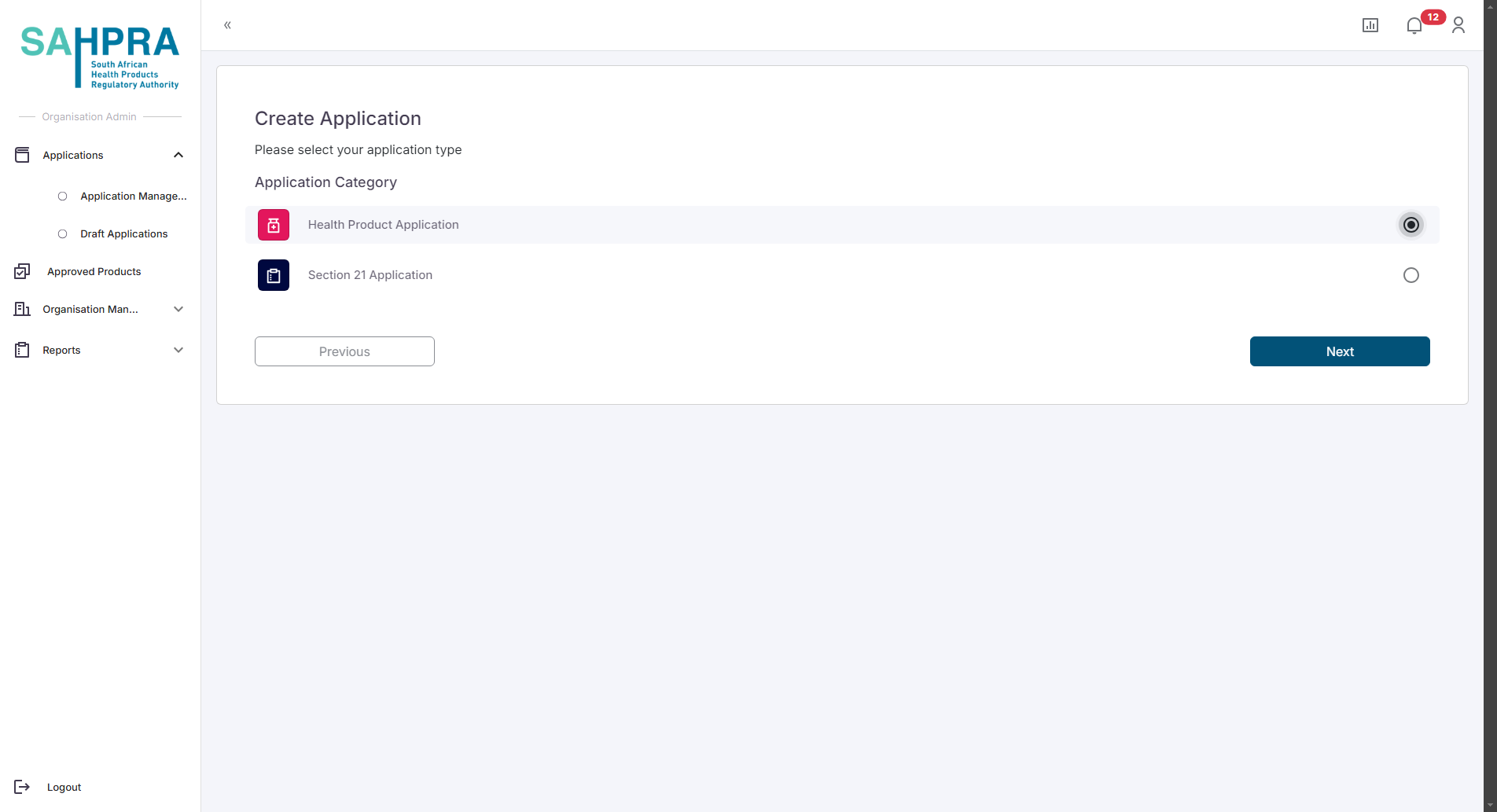
- Click “Next” to proceed.
Step 3: Select Variation Application Type

- Select “Variation” from the application types.
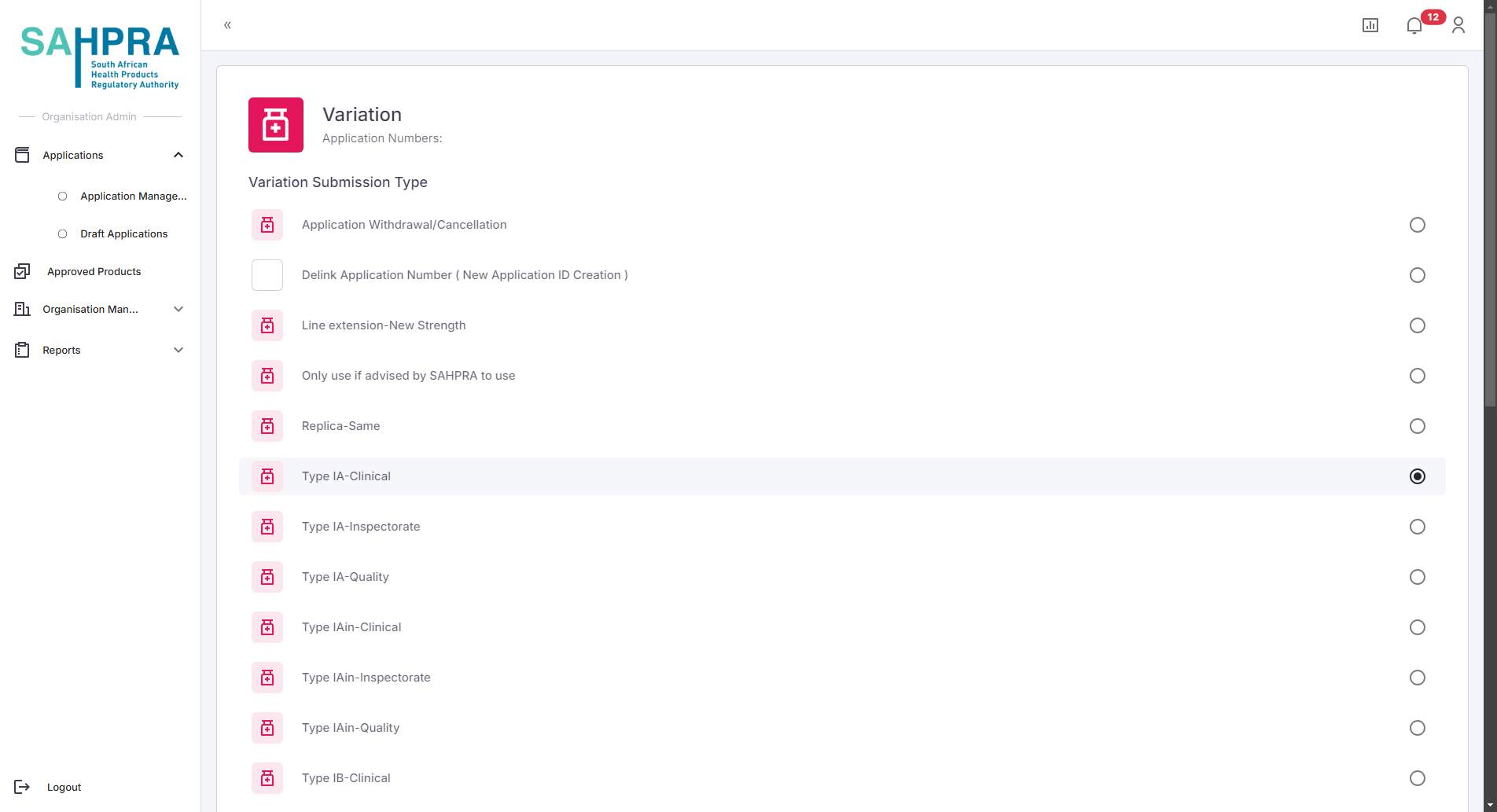
- Click “Next” to proceed.
Step 4: Link to Existing Application
- Enter the Application ID of the existing product in the search field.
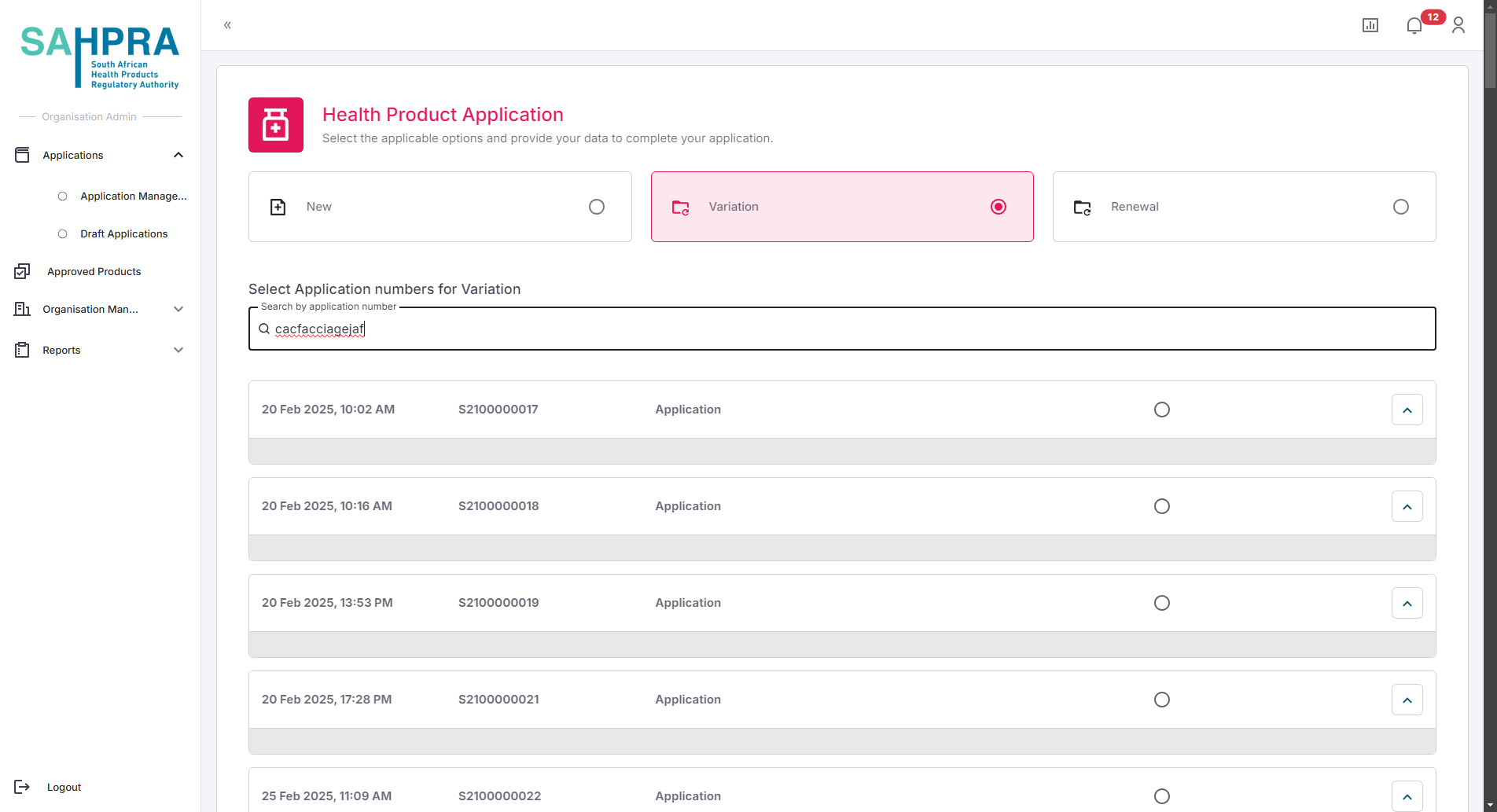
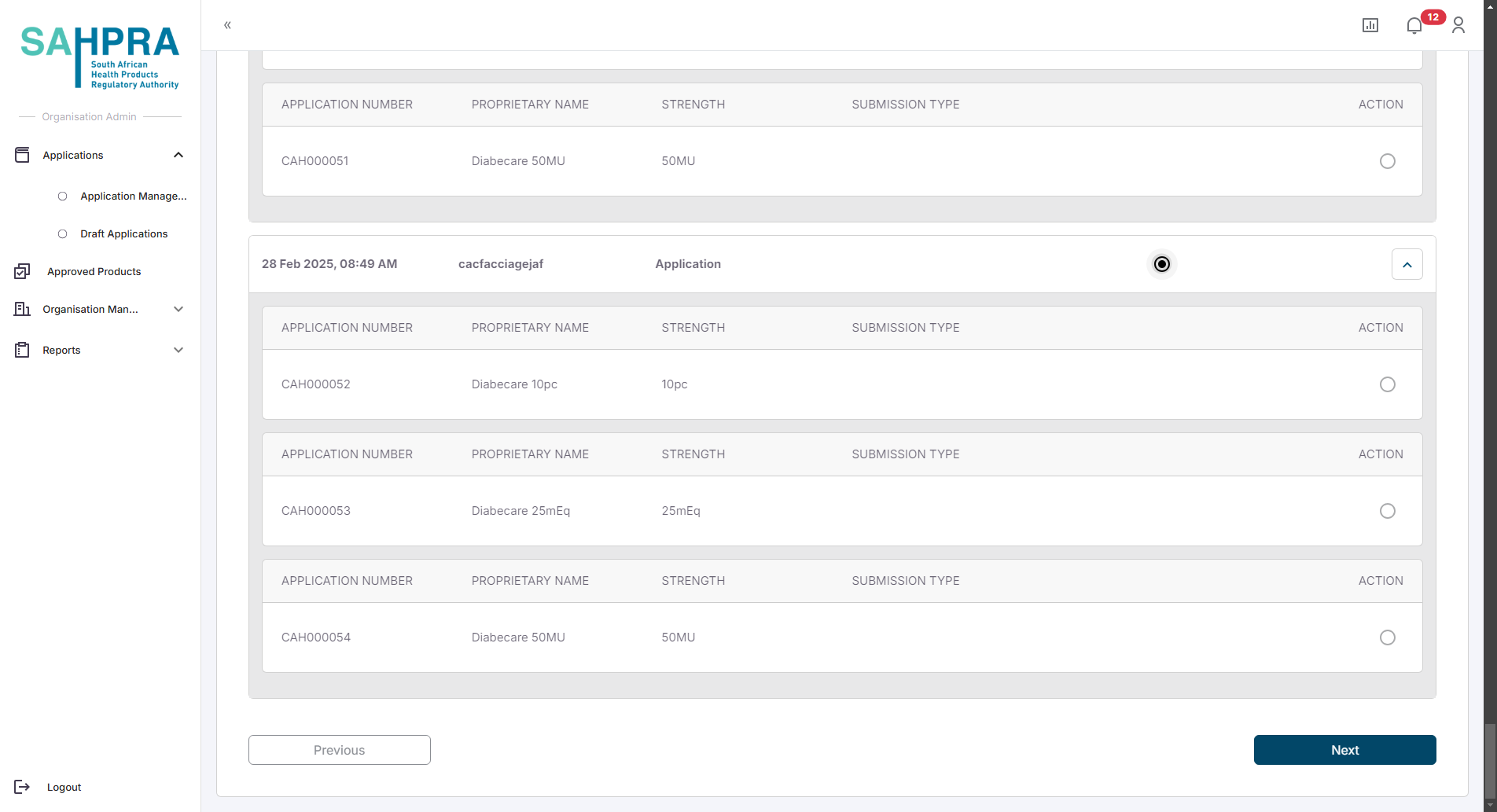
The system will display the matching application.
Select the application by clicking the checkbox next to it.
Click “Next” to proceed.
Step 5: Variation types
Clicking on the “Variation” option will give you the options of Variation Submission Types which can be initiated. After selecting a Variation Submission Type you can select a full application to which the variation(s) will apply.
Type IA, IAIN, IB and type II variations allow for one variation code to be selected. Grouped Variations will allow you to submit up to 3 Type IA/ IAIN, 2 IB codes and 1 Type II code. Note that an approval number is needed to continue with Grouped Variations which can be obtained via the relevant Pre-Approval process (currently not part of the Engagement Portal). Once the approval number is entered your pre-approved variation codes will automatically be selected.
Select a variation you want to create below:
Type IA, IAIN, IB and type II variations
Fill in Variation Details
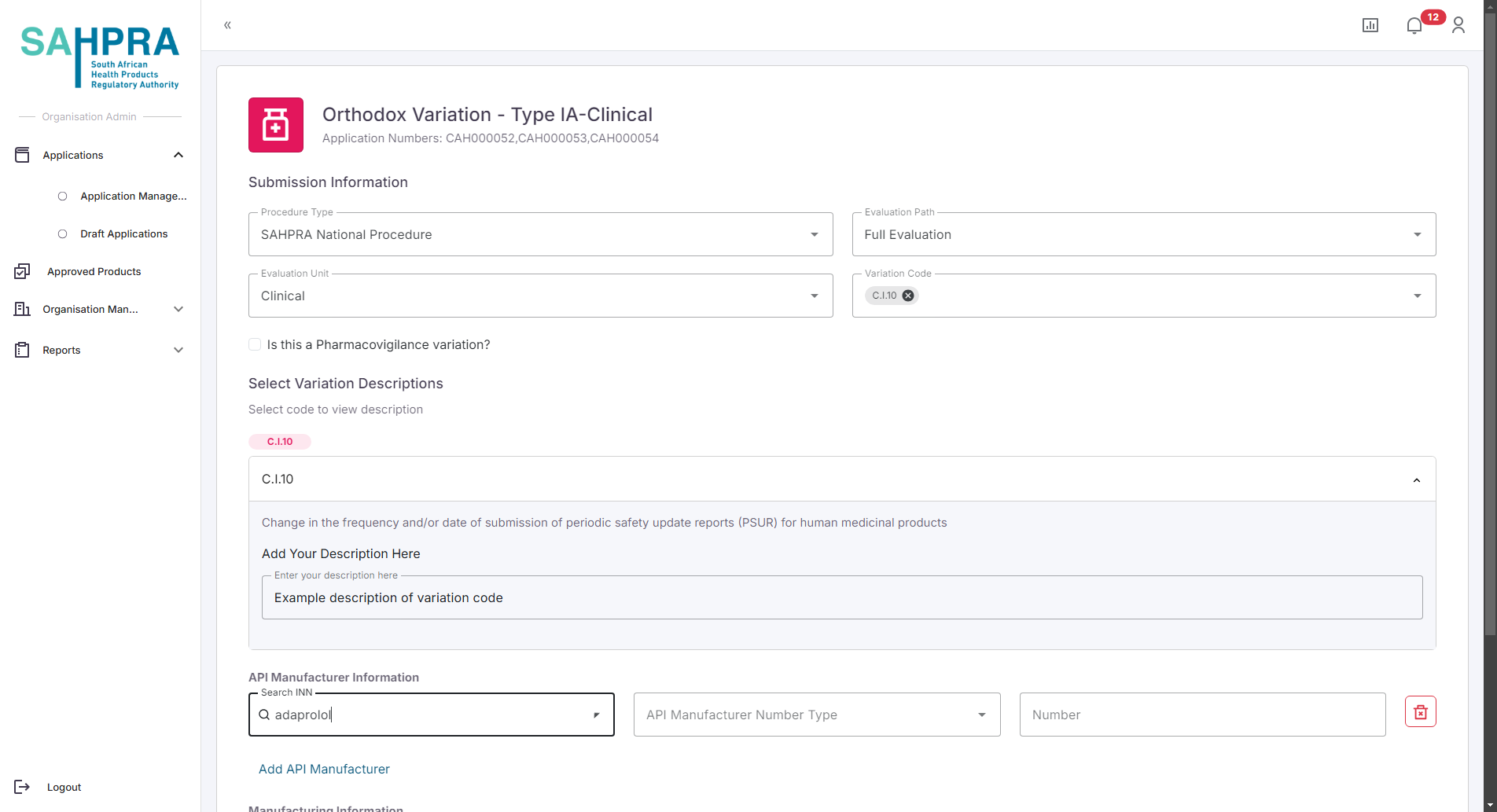
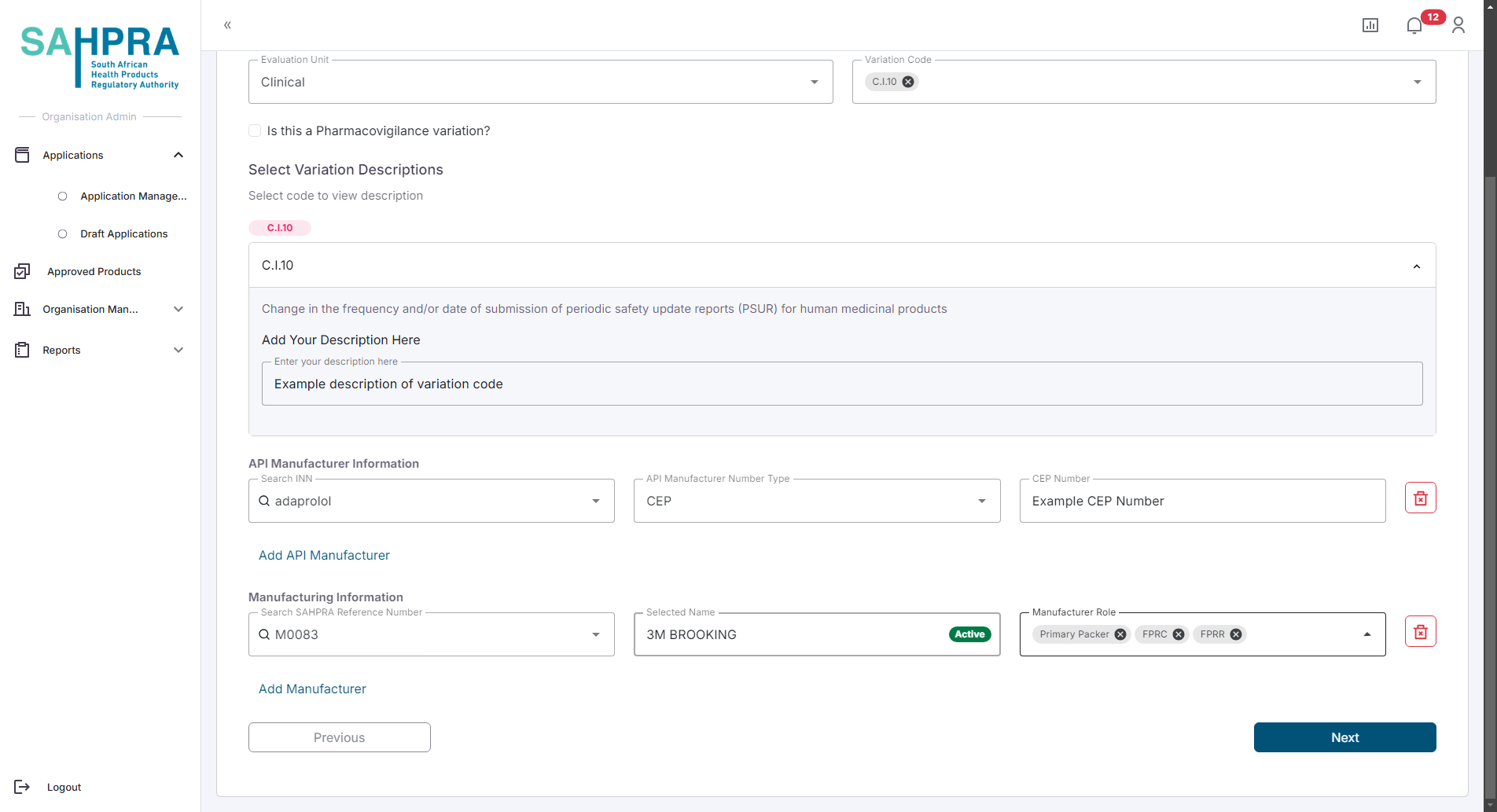
- Click “Next” to proceed.
Transfer of Applicant
Type II-Change in Applicant-Relinquishing
- Once selecting “Type II-Change in Applicant-Relinquishing” you can select the strengths for any approved initial application. Once the strengths are selected you will be prompted to complete the description for the change, enter the Evaluation Path as well as select the registered organisation (you can search via their CIPC number or Organisation name) which you wish to transfer to. Once you are satisfied with the details and clicking the “Next” button a submission will be created, a sequence can be created and submitted (Process for submission and sequence creation are described in detail in the “Initiating a New HPA Application” example number ix to xiii). The application will become unavailable after the review is approved. Note that the acquiring party will not pay any fees for a Transfer of Applicant process.
Grouped Variations
Content coming soon
Add New Strength
Content coming soon
Unlink a Strength
Content coming soon
Step 6: Create a New Sequence and complete payment
Once you are satisfied with the details and clicking the “Next” button a submission will be created, a sequence can be created, paid and submitted (Process for submission and sequence creation are described in detail in the “Creating a New Health Product Application” here). Once the application is approved the expiry date will be set to the applicable new expiry date.
Tips for Successful Variation Applications
- Ensure the variation code selected accurately reflects the changes you want to make.
- Provide comprehensive details in your variation description.
- Prepare all supporting documentation before starting the application.
- Double-check that you’ve linked to the correct existing application.
- Ensure your payment proof is clear and includes all required reference information.